Navigation Bar Buttons
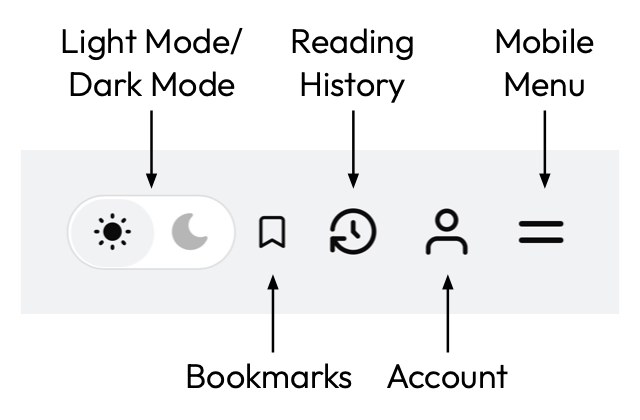
Light Mode/Dark Mode: Toggles between light mode and dark mode.
Bookmarks: Opens the Bookmarks window, which allows you to create and delete bookmarks for book locations. To create a bookmark, open the Bookmarks window and click/tap “Bookmark current location”. The Bookmarks button shows as solid (filled) when your current location is bookmarked. Bookmarks are managed locally on each device.
Reading History: Opens the Reading History window, which shows the book locations that you’ve visited most recently. Reading history is managed locally on each device.
Account: Opens the Account window, which allows you to manage your account and sign out. Visible only when you’re signed in. To sign in, go to Main Menu > More > Sign In / Subscribe. There’s generally no need to sign out.
Mobile Menu: Shows the Main Menu. Visible only on mobile-width windows. If you open the mobile menu and decide to stay on the current page, tap the button again to close the mobile menu.
Table of Contents
Show parts / Show chapters / Show sections
The three "Show" buttons at the top of the table of contents (TOC) allow you to choose three views of the TOC:
- Show parts displays only the major parts and subparts of the book to show the overall structure of the book.
- Show chapters, the default view, shows parts, subparts and chapters.
- Show sections shows all levels of the book structure, including sections within each chapter that are presented on separate webpages, allowing you to find specific sections/topics if you wish. Longer chapters are broken down onto multiple pages to keep the pages to reasonable lengths. To read any chapter from the beginning, even if it has sections listed, click on the chapter entry in the TOC.
Chapter/Section Status Icons
The gray, circular icons after chapter and section titles in the TOC indicate the drafting completion status of the content as follows:
 = No content uploaded
 = Preview notes uploaded
 = Partial draft uploaded
 = Completed draft uploaded